

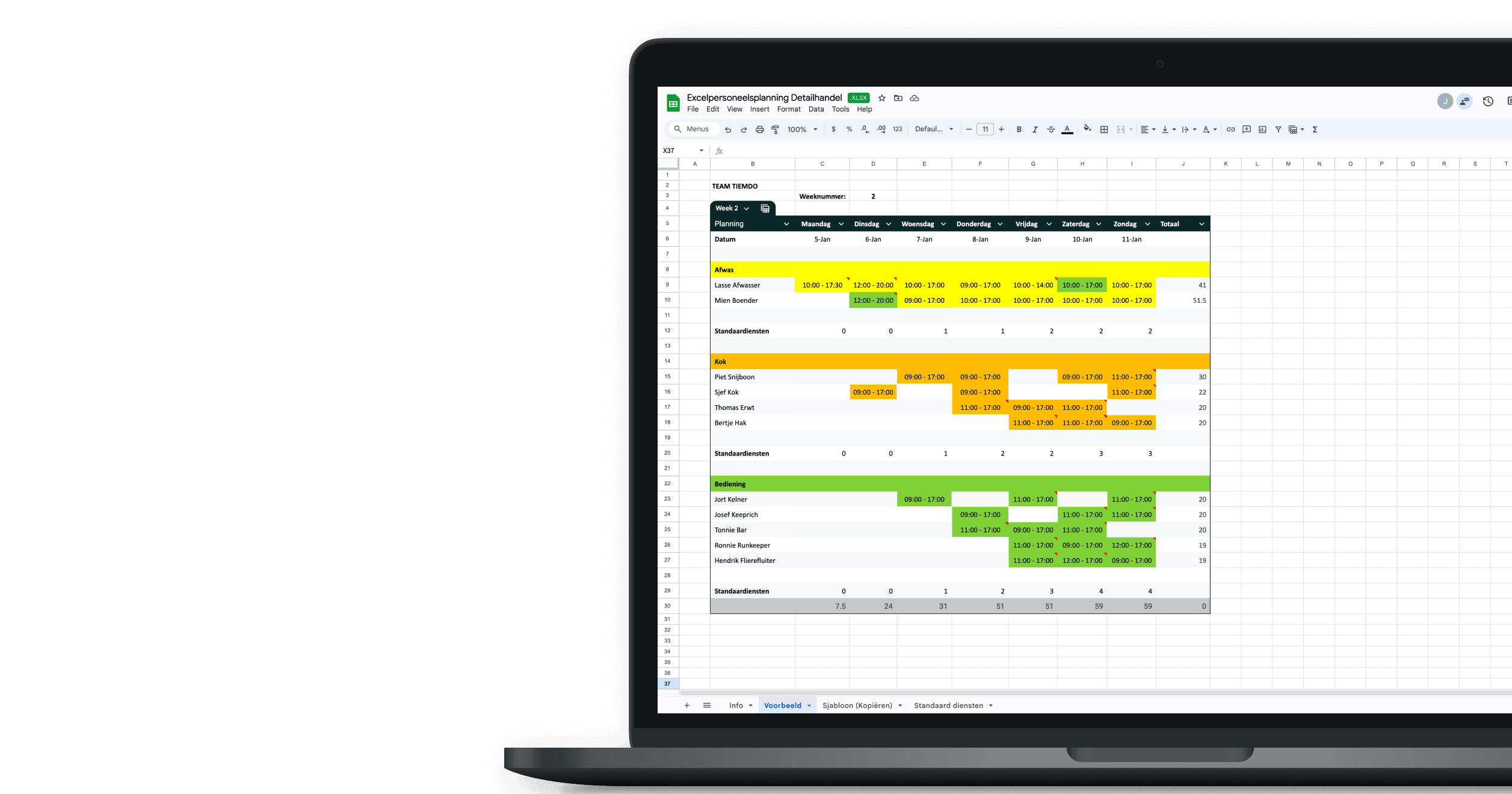
For many hospitality businesses, scheduling in Excel is the starting point: free, familiar and a weekly schedule is up in minutes. We built an Excel sheet set up for the way a hospitality week actually runs, with a block per role and an hours total per employee. On this page you'll read what's in it, how to fill it in and what to watch for as your team grows.
Download the free Excel template
What's in the Excel template?
The sheet has four tabs. Info explains briefly how to use it. Example shows a filled-in week for a made-up team, so you can see how it should look. Template is the blank version you copy each week and rename to the week number. On Standard shifts you set your fixed shift times, for example 09:00 - 17:00 or 12:00 - 20:00, so you write them the same way everywhere.
The schedule runs Monday to Sunday with a block per role: dishwashing, kitchen and front of house. Below each you list your staff and enter a shift per day. The Total column adds up that employee's hours for the week. Each role has a Standard shifts row where you set how many people you need that day, so you can see at a glance whether you're covered. Roles, names and shifts are yours to adjust; to add someone, copy an existing row so the hours total keeps working.
Download the free Excel template
How to schedule staff in Excel for hospitality
Start with demand, not with people. Friday and Saturday nights, patio days, a nearby event: set how many front of house, kitchen and dishwashing staff you need per day in the Standard shifts row. That's your minimum cover.
Then place your permanent staff. They have contracted hours to fill, so put them in first and check the Total column. Fill the gaps with part-timers and on-call staff on the slots still open.
Put availability alongside it. In hospitality it comes in by WhatsApp, notes or at the bar; collect it before you plan and stick to it. Scheduling someone who said they couldn't work is the most common scheduling mistake, and it costs you a shift and goodwill.
Check the totals last. Over budget? Move the quiet hours first, not the peak. Then copy the tab for next week; the fixed shifts stay, you only change the exceptions.
What Excel doesn't watch (but the law does)
The sheet counts hours but enforces no rules. Working-time law sets how much rest staff need between shifts, how long a break has to be, how many hours they can work in a week and extra limits for under-18s — and it differs by country, and often by state or region. The sheet checks none of it and works out no overtime or premium pay. However you schedule, make sure the result meets the rules where you operate. As a rule of thumb, someone who closes late at night shouldn't be opening up early the next morning.
When Excel gets too small
For a café of eight with a steady rhythm the sheet works fine. It starts to strain once you're at ten or more staff, with availability changing weekly, or you run more than one location. Every swap or sick call is a manual edit, several versions of the schedule go around and nobody's sure which is the latest. At month end you retype the hours into payroll, and what the schedule actually cost only shows up in the pay run. At that point Excel costs you more time than it saves.
Save time by automating your schedules and cut the risk of mistakes. Staff share their availability in the app, you see labor costs as you plan, staff clock in via the app and hours flow straight into payroll. You're up and running right after signing up, from €1 per employee. We'll let you know when your trial is nearly over.
Frequently asked questions
Is the Excel template really free?
Yes. You request it with your email address and get the sheet straight in your inbox. No strings attached.
Does the template work in Google Sheets?
Yes, you can open and edit it in Google Sheets or Numbers.
Can I add roles other than dishwashing, kitchen and front of house?
Yes. Copy an existing role block, rename it and you've got a block for bar, host or patio.
How do I plan several weeks ahead?
Copy the Template tab per week and name it after the week number.
Can I move my Excel schedule to Tiemdo later?
Yes. You transfer your staff and fixed shifts once, then carry on planning in Tiemdo.